
Note: This blog post has been updated to show how to troubleshoot app connectivity issues
Wi-Fi Connect We have implemented Wi-Fi functionality into our products which allows you to view your recordings and send them to your mobile device using our Rexing Connect App. To learn how to connect via Wi-Fi check out the instructions & videos below.
Wi-Fi Troubleshooting
Having Trouble Connecting or Experiencing Slow WIFI Speeds?
Connection issues are often caused by interference from another WIFI network. Below are common causes and how to resolve them:
1. If Your Vehicle Has Wireless CarPlay or Wireless Android Auto
Why this causes issues:
Your phone may prioritize the CarPlay/Android Auto connection, interfering with the dash cam’s WIFI connection.
How to fix:
Temporarily turn off Wireless CarPlay/Android Auto in your phone settings while accessing the video files.
Remember to re-enable it afterward.
2. If You’re Trying to Access Footage Near Your Home
Why this causes issues:
Your phone will attempt to connect to your home WIFI network and ignore other networks it recognizes.
How to fix:
Drive a short distance away from your home before reconnecting to the dash cam’s WIFI.
3. If Your Phone Has a VPN Enabled
Why this causes issues:
A VPN replaces your IP address with one from a different location, which may interfere with WIFI-based communication between your device and the dash cam.
How to fix:
Temporarily disable the VPN while connecting.
Once you’re done accessing the files, you may turn the VPN back on.
If you bring up the REXING Connect App and cannot connect your phone to the dash cam please
Turn OFF Wi-Fi Assist
How to disable Wi-Fi Assist
For Apple iOS devices:
1.) Go to your phone settings -> Press Cellular -> Scroll all the way down -> Turn off Wi-Fi Assist
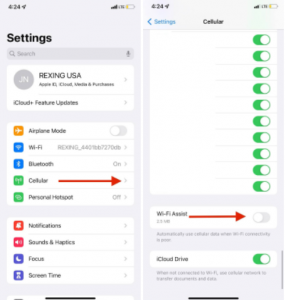
Apple iOS Instructions
2.) Connect your phone to the camera’s Wi-Fi and then open up the REXING Connect app and press Connect.
For Android Devices:
1.) Go to your phone settings -> Connections -> Press Wi-Fi -> Tap the 3 ascending dots in the top right hand corner -> Advanced -> Turn off “Switch to Mobile Data”
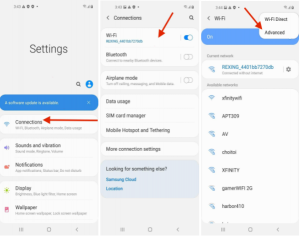
Android Instructions Part 1
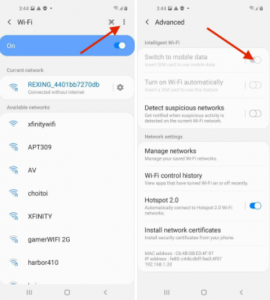
Android Instructions Part 2
2.) Connect your phone to the camera’s Wi-Fi and then open up the REXING Connect app and press Connect.
**If you cannot see the SSID (Network Name) In the Wi-Fi Settings**
Physically move to another location as there might be some Wi-Fi Interference at your location.
*If you are experiencing any other issues or cannot get your problem resolved please contact our live customer support team at care@rexingusa.com
NOTE: Although we suggest using your Rexing Connect App, where we have a thriving community of dash cam video users, you can also try downloading a 3rd party app called Timacam which is also supported by our cameras.
You must be logged in to post a comment.